Scan a QR code in four steps
Open the Camera app
Use the normal Camera app from the home screen or Lock Screen.
Point at the code
Hold the phone so the whole code is in the frame. It does not need to fill the screen.
Wait a moment
The phone recognizes the code and shows a banner or link near the top or bottom of the screen.
Tap the banner
Tap it to open the link, contact or other action. Look at the address first if you do not recognize the source.
If it will not scan
- Move the phone closer or farther; a code needs to be sharp.
- Add light or remove glare from a window or lamp.
- Wipe the camera lens.
- Hold still for a second.
- Check the code is not damaged, folded or printed too small; see the QR size guide.
- Try another way in: an NFC card, or scanning from a photo.
iPhone and Android
| iPhone | Android | |
|---|---|---|
| Main way | Camera app | Camera app on many phones, or Google Lens |
| Other options | See Apple's guide for any other scanning options on your version | A Scan QR code tile in Quick Settings on Pixel phones |
| Guide | Apple Support | Pixel Phone Help for Pixel phones |
Steps vary by phone model and software version; use your phone maker's help if a step looks different.
Scan safely
A QR code is just a link. Check the address before you open it, be careful with codes stuck over other codes and never enter passwords or payment details on a page you reached from a code you do not trust.
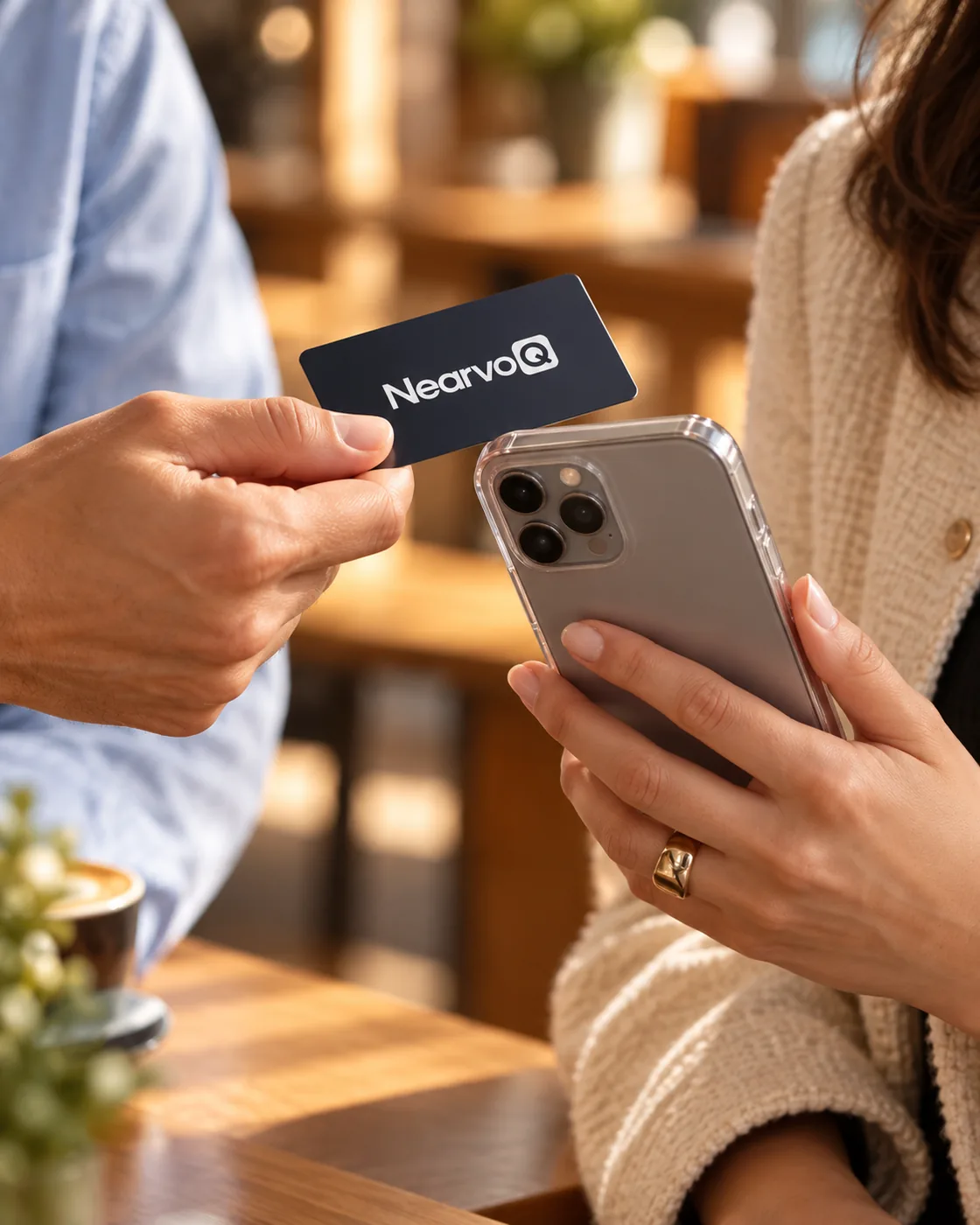
On a NearvoQ card the QR code opens the owner's NearvoQ profile or review form; the same card also has an NFC chip, so how to tap on an iPhone is an alternative.
Common mistakes
- Opening a photo of the code instead of using the live Camera view.
- Holding the phone too close, so the code is out of focus.
- Scanning a code that is partly covered, curved or glared over.
- Ignoring the preview address before tapping the banner.
- Trying to scan with Camera access turned off, or with the lens covered by a case.
- Giving up after one try: a second attempt in better light usually works.
Where you will meet QR codes
QR codes now appear on menus, posters, parking meters, business cards, packaging and receipts. They all work the same way: the phone reads a web address or a short piece of text and offers to act on it.
On a NearvoQ business card, the QR code opens the card owner's page; a person who prefers to tap can do that with the NFC chip, and the QR code is the backup for phones that cannot.